> ## Documentation Index
> Fetch the complete documentation index at: https://sofiedocs.usetransfer.ai/llms.txt
> Use this file to discover all available pages before exploring further.
# Quickstart
> Set up Sofie, start your first useful chat, add context, and find your work again.
Use this guide the first time you open Sofie. You will complete onboarding, learn the sidebar, ask a useful life sciences question, and save the result in the right place.
## What you need
* A Sofie account from your organization.
* Access to any Workspace, file, Surface, CoDraft, CoMeeting, or CoSheet you want Sofie to use.
* A clear first task, even if the source material is incomplete.
Your organization controls which features, models, integrations, and shared Workspaces are available. If a button or page is missing, your account may not have access yet.
## Complete onboarding
Sofie uses onboarding details to understand how you work. Keep the information practical. You can improve it later with Memory and Directives.
Open Sofie and sign in with the account your organization uses.
Add or update your **Profile Photo**. Confirm **Your Name**, then enter what Sofie should call you in **What should we call you?**.
Enter your **Job Title** and **Function or Department**. Useful examples are `Quality Assurance Manager`, `MSAT`, `Manufacturing`, `Quality`, or `R&D`.
Choose the tasks you expect Sofie to help with, such as **Tech Transfer**, **Risk Assessment**, **Report Drafting**, **SOP Alignment**, **Document Generation**, **Regulatory Insights**, **Change Control**, **Protocol Authoring**, **Process Mapping**, **Proposal Development**, or **Summarize Documents**.
Click **Finish**. Sofie opens the main chat experience.
Use your actual role and function. "QA reviewer for sterile manufacturing" gives Sofie better context than "manager".
## Learn the sidebar
The sidebar is the fastest way to move through Sofie.
| Sidebar item | Use it for |
| ------------------ | -------------------------------------------------------------------------------------------------------------- |
| **New Chat** | Start a new conversation. |
| **Recents** | Reopen recent chats, artifacts, Workspaces, and runs. |
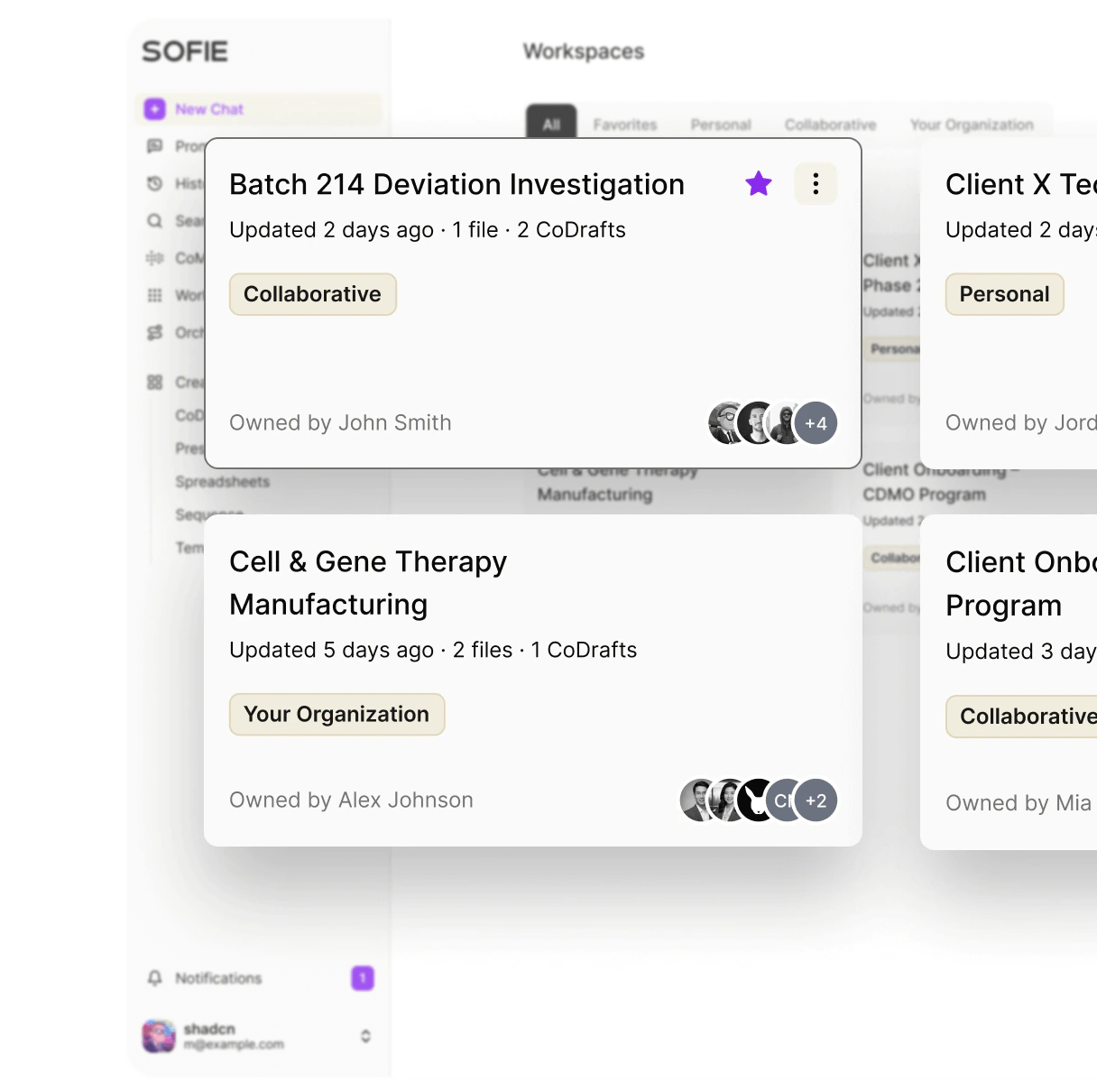
| **Workspaces** | Organize files, chats, artifacts, and teammates. |
| **Surfaces** | Create and manage interactive apps, pages, and slide decks when enabled. |
| **Orchestrations** | Build or run repeatable workflows when enabled. |
| **Tools** | Open CoMeetings, CoDrafts, CoSheets, Sequences, Templates, Saved prompts, and Skills that are enabled for you. |
| **Search** | Open [Search Sofie](/search/search-sofie) from the sidebar header. |
| User menu | Manage account settings and related options. |
 ## Start your first useful chat
Start with a specific task, the source material Sofie should use, and the output you want.
Click **New Chat** in the sidebar.
Describe the business process, source, output format, and review constraints.
Click the **+** control to attach files, add context, or insert a Saved prompt.
Click the sliders control if you need **Workspace search**, **Web search**, **Deep research**, **Plan Mode**, or **Sofie Guide**.
Send the message. Ask Sofie to revise, cite sources, turn the answer into a CoDraft, or save it to a Workspace.
First useful prompt:
```text theme={null}
Task: Review the attached deviation summary for investigation gaps.
Context: This is for a fill-finish deviation in a GMP manufacturing process.
Output: Create a table with known facts, missing evidence, follow-up questions, and likely source documents to check.
Constraints: Do not conclude root cause. Flag assumptions separately.
```
## Add context the right way
Use the **+** control in chat when Sofie needs more than your message.
| Context type | When to use it |
| ------------------ | ---------------------------------------------------- |
| **Attach** | Upload files for the current message. |
| **Prompts** | Insert a Saved prompt you use often. |
| **CoDrafts** | Ask about or continue an existing document. |
| **CoSheets** | Ask about spreadsheet data or selected cells. |
| **CoMeetings** | Use a transcript, notes, or meeting summary. |
| **Workspaces** | Give Sofie project context and related files. |
| **Orchestrations** | Run or reference a repeatable workflow. |
| **Plans** | Continue a plan created in the current conversation. |
If the source material belongs to a team or project, put it in a Workspace. If it is a one-time file, attach it to the chat.
## Use search settings
The search settings menu controls how Sofie gathers context.
* Turn on **Workspace search** when you want Sofie to search files in the selected Workspace.
* Turn on **Web search** when you need current public information.
* Turn on **Deep research** when you need slower, broader external source gathering. Deep research requires **Web search**.
* Turn on **Plan Mode** when the request is complex and you want Sofie to break work into steps before acting.
Review external sources and generated summaries before using them in regulated, quality, clinical, or controlled work. Sofie helps prepare work for review.
## Find your work again
Sofie keeps related work accessible across the app.
* Use **Recents** for past conversations, artifacts, and runs.
* Use **Search** for global search across Sofie. See [Search Sofie](/search/search-sofie).
* Use **Workspaces** for project files, related chats, Surfaces, CoDrafts, CoMeetings, CoSheets, templates, and activity.
* Use **Surfaces** to reopen interactive apps, pages, and slide decks.
* Use pinned items for active work you open often.
* Use **Recent Chats** inside a Workspace to return to conversations tied to that Workspace.
## Move from chat to an artifact
Chat is best for reasoning and iteration. Move to an artifact when the work needs structure.
| If the output becomes | Move it to |
| ------------------------------------------------------------------------------ | ----------- |
| A document, report, protocol, URS, SOP draft, or narrative | CoDraft |
| Spreadsheet data, calculations, issue logs, or charts | CoSheet |
| Meeting minutes, transcript review, or action follow-up | CoMeeting |
| An interactive tracker, form, dashboard, page-based deliverable, or slide deck | Surface |
| A repeatable process with steps and review points | Orchestrate |
| Shared project context | Workspace |
## Quick troubleshooting
Make sure you started the chat from the Workspace or added the Workspace through **Add context**. Turn on **Workspace search** before asking Sofie to search the Workspace files.
Add the source file, Workspace, CoMeeting, CoDraft, or CoSheet. Then ask for a specific output such as a table, checklist, report outline, or follow-up question list.
Ask Sofie to separate **facts**, **assumptions**, **source gaps**, and **recommended next checks**. Use this pattern for deviations, CAPA, validation, batch review, and regulatory work.
## Start your first useful chat
Start with a specific task, the source material Sofie should use, and the output you want.
Click **New Chat** in the sidebar.
Describe the business process, source, output format, and review constraints.
Click the **+** control to attach files, add context, or insert a Saved prompt.
Click the sliders control if you need **Workspace search**, **Web search**, **Deep research**, **Plan Mode**, or **Sofie Guide**.
Send the message. Ask Sofie to revise, cite sources, turn the answer into a CoDraft, or save it to a Workspace.
First useful prompt:
```text theme={null}
Task: Review the attached deviation summary for investigation gaps.
Context: This is for a fill-finish deviation in a GMP manufacturing process.
Output: Create a table with known facts, missing evidence, follow-up questions, and likely source documents to check.
Constraints: Do not conclude root cause. Flag assumptions separately.
```
## Add context the right way
Use the **+** control in chat when Sofie needs more than your message.
| Context type | When to use it |
| ------------------ | ---------------------------------------------------- |
| **Attach** | Upload files for the current message. |
| **Prompts** | Insert a Saved prompt you use often. |
| **CoDrafts** | Ask about or continue an existing document. |
| **CoSheets** | Ask about spreadsheet data or selected cells. |
| **CoMeetings** | Use a transcript, notes, or meeting summary. |
| **Workspaces** | Give Sofie project context and related files. |
| **Orchestrations** | Run or reference a repeatable workflow. |
| **Plans** | Continue a plan created in the current conversation. |
If the source material belongs to a team or project, put it in a Workspace. If it is a one-time file, attach it to the chat.
## Use search settings
The search settings menu controls how Sofie gathers context.
* Turn on **Workspace search** when you want Sofie to search files in the selected Workspace.
* Turn on **Web search** when you need current public information.
* Turn on **Deep research** when you need slower, broader external source gathering. Deep research requires **Web search**.
* Turn on **Plan Mode** when the request is complex and you want Sofie to break work into steps before acting.
Review external sources and generated summaries before using them in regulated, quality, clinical, or controlled work. Sofie helps prepare work for review.
## Find your work again
Sofie keeps related work accessible across the app.
* Use **Recents** for past conversations, artifacts, and runs.
* Use **Search** for global search across Sofie. See [Search Sofie](/search/search-sofie).
* Use **Workspaces** for project files, related chats, Surfaces, CoDrafts, CoMeetings, CoSheets, templates, and activity.
* Use **Surfaces** to reopen interactive apps, pages, and slide decks.
* Use pinned items for active work you open often.
* Use **Recent Chats** inside a Workspace to return to conversations tied to that Workspace.
## Move from chat to an artifact
Chat is best for reasoning and iteration. Move to an artifact when the work needs structure.
| If the output becomes | Move it to |
| ------------------------------------------------------------------------------ | ----------- |
| A document, report, protocol, URS, SOP draft, or narrative | CoDraft |
| Spreadsheet data, calculations, issue logs, or charts | CoSheet |
| Meeting minutes, transcript review, or action follow-up | CoMeeting |
| An interactive tracker, form, dashboard, page-based deliverable, or slide deck | Surface |
| A repeatable process with steps and review points | Orchestrate |
| Shared project context | Workspace |
## Quick troubleshooting
Make sure you started the chat from the Workspace or added the Workspace through **Add context**. Turn on **Workspace search** before asking Sofie to search the Workspace files.
Add the source file, Workspace, CoMeeting, CoDraft, or CoSheet. Then ask for a specific output such as a table, checklist, report outline, or follow-up question list.
Ask Sofie to separate **facts**, **assumptions**, **source gaps**, and **recommended next checks**. Use this pattern for deviations, CAPA, validation, batch review, and regulatory work.