> ## Documentation Index
> Fetch the complete documentation index at: https://sofiedocs.usetransfer.ai/llms.txt
> Use this file to discover all available pages before exploring further.
# Create and edit a Surface
> Build a Surface with Sofie, refine it from chat, make direct edits, organize pages or slides, and present it.
Create a Surface by describing the experience you want. Sofie builds it beside the conversation, where you can review the result and ask for changes without leaving the work.
## Write a useful build request
Include four things in your first request:
| Include | Example |
| ----------- | -------------------------------------------------------------------------------------------------------- |
| Audience | QA managers and process owners. |
| Job | Review deviations, assign actions, and track closure. |
| Information | Severity, site, product, owner, due date, status, and evidence. |
| Access | Managers see all records; participants update assigned work; external partners see only invited records. |
Example:
```text theme={null}
Build an Interactive Surface for supplier quality actions. Our team should manage every action. Each supplier should be able to open only the actions shared with them, add a response, and attach evidence. Include an overview with overdue counts, a searchable action list, and an action detail form.
```
For a page or slide deliverable, also specify the intended length, audience, and source boundaries.
```text theme={null}
Create a Slides Surface for the monthly quality review. Use this Workspace and the attached CoSheet. Include an executive summary, deviation trends, CAPA closure, overdue items, decisions needed, and an appendix of source gaps. Keep unsupported conclusions out of the deck.
```
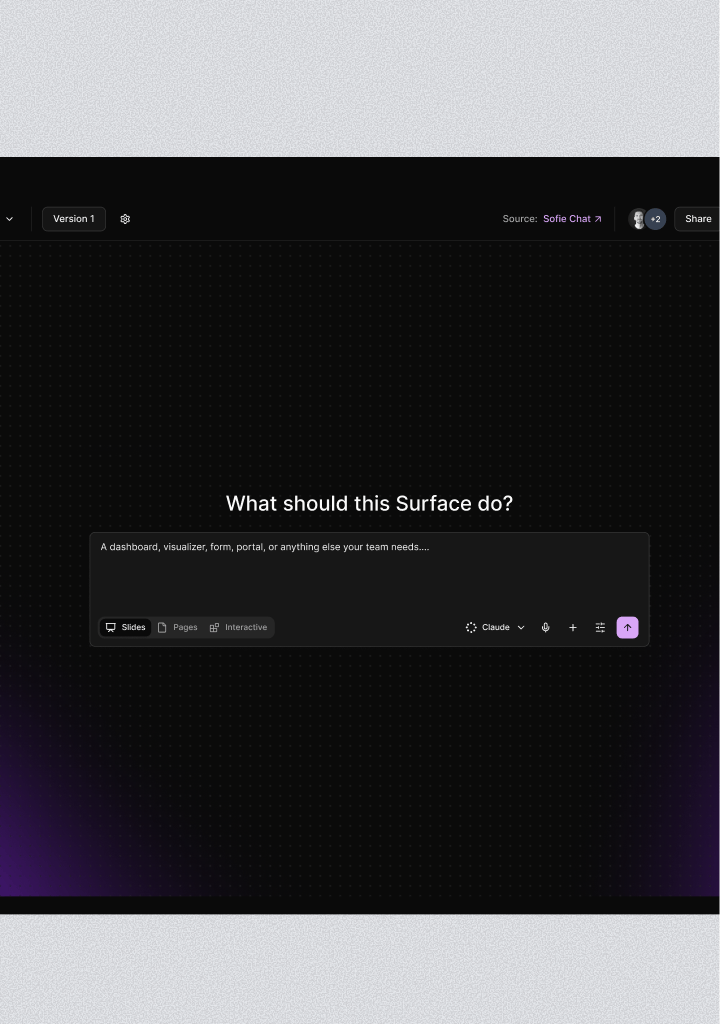
## Build from the Surface page
Open **Surfaces**, click **Create Surface**, and select **Interactive**, **Pages**, or **Slides**.
Enter your build request in **What should this Surface do?**. Add a Workspace or attachments when Sofie needs source context.
Check the information, layout, interactions, and source use. Test any forms, filters, links, or calculations.
Ask for focused changes in Sofie Everywhere or the originating chat. Keep each request specific enough to verify.
 ## Refine from chat
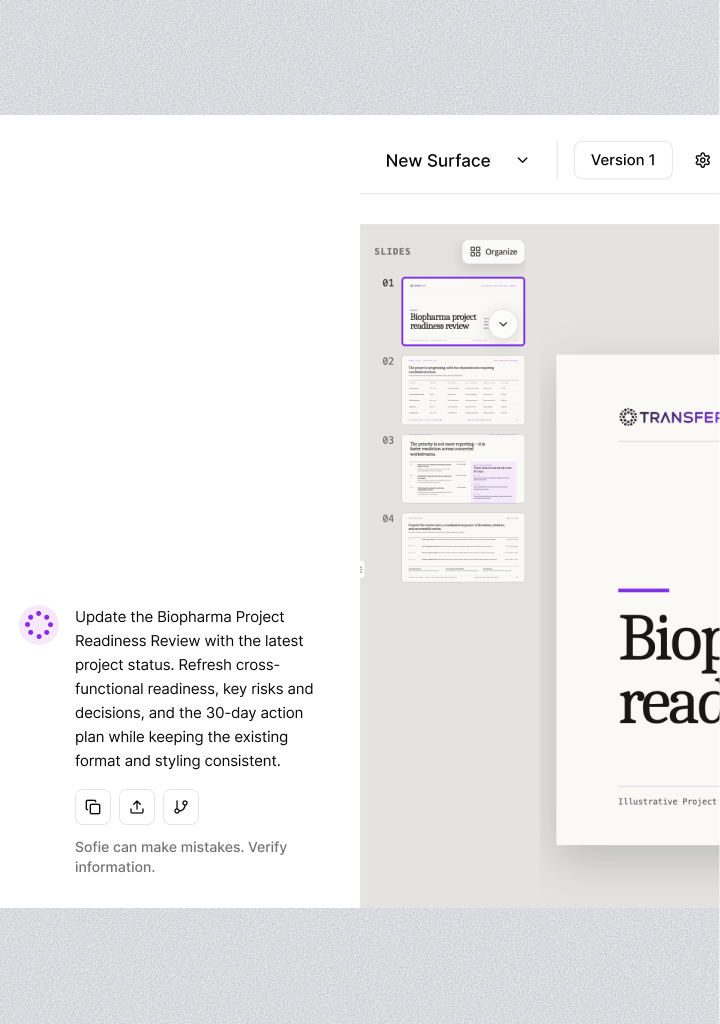
When a Surface is open beside chat, Sofie understands that Surface as the current page context. Ask for changes in plain language.
Useful follow-ups:
```text theme={null}
Add a status filter and an overdue-only view. Keep the existing record fields and access rules unchanged.
```
```text theme={null}
On slide 3, replace the dense table with three findings and a small trend chart. Keep the underlying values and source labels.
```
```text theme={null}
Check the Surface for broken interactions, clipped content, unreadable labels, and missing empty states. Fix the problems you find.
```
Separate content changes from data or access changes. Ask Sofie to preserve the record structure and permissions when you only want to change the presentation.
## Use Quick Edit
**Quick Edit** lets a manager change visible content directly on the Surface.
If the bottom toolbar is hidden, click **Show Toolbar**.
Click **Quick Edit**.
Click an editable element. Change its text, size, or position when those controls are available.
Click **Finish Editing**. Sofie saves the changes and moves them to an editable draft when needed.
Use Quick Edit for small visual or wording changes. Use Sofie for layout changes, new interactions, data behavior, or access rules.
## Mark a change with Sofie Magic
**Sofie Magic** lets you point to a specific area instead of describing its location.
Click **Sofie Magic** in the Surface toolbar.
Draw around the region you want to change. Sofie captures the marked view and any selected text.
Enter a focused instruction in **Tell Sofie what to change...**.
Click **Send to Sofie**. Review the updated Surface when Sofie finishes.
## Refine from chat
When a Surface is open beside chat, Sofie understands that Surface as the current page context. Ask for changes in plain language.
Useful follow-ups:
```text theme={null}
Add a status filter and an overdue-only view. Keep the existing record fields and access rules unchanged.
```
```text theme={null}
On slide 3, replace the dense table with three findings and a small trend chart. Keep the underlying values and source labels.
```
```text theme={null}
Check the Surface for broken interactions, clipped content, unreadable labels, and missing empty states. Fix the problems you find.
```
Separate content changes from data or access changes. Ask Sofie to preserve the record structure and permissions when you only want to change the presentation.
## Use Quick Edit
**Quick Edit** lets a manager change visible content directly on the Surface.
If the bottom toolbar is hidden, click **Show Toolbar**.
Click **Quick Edit**.
Click an editable element. Change its text, size, or position when those controls are available.
Click **Finish Editing**. Sofie saves the changes and moves them to an editable draft when needed.
Use Quick Edit for small visual or wording changes. Use Sofie for layout changes, new interactions, data behavior, or access rules.
## Mark a change with Sofie Magic
**Sofie Magic** lets you point to a specific area instead of describing its location.
Click **Sofie Magic** in the Surface toolbar.
Draw around the region you want to change. Sofie captures the marked view and any selected text.
Enter a focused instruction in **Tell Sofie what to change...**.
Click **Send to Sofie**. Review the updated Surface when Sofie finishes.
 ## Work with Pages
Pages use a fixed document layout. Managers can open **Surface settings** and use **Page setup** to choose:
* Letter, A4, or legal size.
* Portrait or landscape orientation.
Use **Organize** to reorder pages. Changes save as you move them.
## Work with Slides
Slides include a slide rail for navigation. Use **Organize** to drag slides into a new order or use the arrow controls on each slide card. The organizer saves the order as you change it.
When presenting, you can move through slides with the on-screen controls or common presentation keys such as the arrow keys, Page Up, Page Down, and the space bar.
## Present a Surface
Open **Present** and choose:
* **In this tab** to use the current browser tab.
* **Fullscreen** to enter a distraction-free view.
* **New tab** to open a separate presentation window.
Presentation mode is useful for Interactive and Pages Surfaces as well as Slides. Use the zoom controls when you need to adjust the view.
## Export a Surface
Open **Surface settings** and choose the format available for the Surface:
| Surface format | Exports |
| -------------- | --------------------- |
| Interactive | Paginated PDF. |
| Pages | PDF. |
| Slides | PDF or editable PPTX. |
For an editable Slides export, choose the font strategy that matches where the deck will be used:
| PPTX font option | Choose it when |
| ------------------------------------- | -------------------------------------------------------------------------------------------------------------------- |
| **Editable · embedded Surface fonts** | You want the closest visual match. Sofie embeds supported Surface fonts. This is the recommended default. |
| **Editable · universal fonts** | The deck will be broadly shared or edited in Microsoft Office. Sofie maps text to Office-safe font families. |
| **Editable · custom fonts** | Recipients have the authored or brand fonts installed. The export keeps those font names. |
| **Editable · Google Slides fonts** | The deck will be uploaded to and edited in Google Slides. Sofie maps common font stacks to Google-friendly families. |
Before delivery:
1. Open the live version, draft, previous version, or snapshot you intend to export.
2. Confirm the visible record and feed values are current for the delivery.
3. Check page or slide order, wrapping, clipping, charts, images, and source labels.
4. Choose the PPTX font option for the recipient's editor.
5. Open the exported file in its destination application and compare it with the Surface.
A snapshot preserves a Surface version and feed selections, but it does not freeze collection records. See [Versions and snapshots](/surfaces/versions-and-snapshots#take-a-snapshot) before using a snapshot for a point-in-time deliverable.
## Handle a Surface error
If the Surface reports that it hit an error, managers can click **Ask Sofie to fix it**. Sofie receives the runtime error and the current Surface context.
After a fix, test the original interaction again. Also check nearby filters, forms, calculations, and navigation because one error can affect more than one view.
Review generated text, calculations, charts, and data mappings before relying on them. Sofie can make mistakes, including in polished or interactive output.
## Work with Pages
Pages use a fixed document layout. Managers can open **Surface settings** and use **Page setup** to choose:
* Letter, A4, or legal size.
* Portrait or landscape orientation.
Use **Organize** to reorder pages. Changes save as you move them.
## Work with Slides
Slides include a slide rail for navigation. Use **Organize** to drag slides into a new order or use the arrow controls on each slide card. The organizer saves the order as you change it.
When presenting, you can move through slides with the on-screen controls or common presentation keys such as the arrow keys, Page Up, Page Down, and the space bar.
## Present a Surface
Open **Present** and choose:
* **In this tab** to use the current browser tab.
* **Fullscreen** to enter a distraction-free view.
* **New tab** to open a separate presentation window.
Presentation mode is useful for Interactive and Pages Surfaces as well as Slides. Use the zoom controls when you need to adjust the view.
## Export a Surface
Open **Surface settings** and choose the format available for the Surface:
| Surface format | Exports |
| -------------- | --------------------- |
| Interactive | Paginated PDF. |
| Pages | PDF. |
| Slides | PDF or editable PPTX. |
For an editable Slides export, choose the font strategy that matches where the deck will be used:
| PPTX font option | Choose it when |
| ------------------------------------- | -------------------------------------------------------------------------------------------------------------------- |
| **Editable · embedded Surface fonts** | You want the closest visual match. Sofie embeds supported Surface fonts. This is the recommended default. |
| **Editable · universal fonts** | The deck will be broadly shared or edited in Microsoft Office. Sofie maps text to Office-safe font families. |
| **Editable · custom fonts** | Recipients have the authored or brand fonts installed. The export keeps those font names. |
| **Editable · Google Slides fonts** | The deck will be uploaded to and edited in Google Slides. Sofie maps common font stacks to Google-friendly families. |
Before delivery:
1. Open the live version, draft, previous version, or snapshot you intend to export.
2. Confirm the visible record and feed values are current for the delivery.
3. Check page or slide order, wrapping, clipping, charts, images, and source labels.
4. Choose the PPTX font option for the recipient's editor.
5. Open the exported file in its destination application and compare it with the Surface.
A snapshot preserves a Surface version and feed selections, but it does not freeze collection records. See [Versions and snapshots](/surfaces/versions-and-snapshots#take-a-snapshot) before using a snapshot for a point-in-time deliverable.
## Handle a Surface error
If the Surface reports that it hit an error, managers can click **Ask Sofie to fix it**. Sofie receives the runtime error and the current Surface context.
After a fix, test the original interaction again. Also check nearby filters, forms, calculations, and navigation because one error can affect more than one view.
Review generated text, calculations, charts, and data mappings before relying on them. Sofie can make mistakes, including in polished or interactive output.