> ## Documentation Index
> Fetch the complete documentation index at: https://sofiedocs.usetransfer.ai/llms.txt
> Use this file to discover all available pages before exploring further.
# Manage Surface versions and snapshots
> Use drafts, live versions, test data, readiness checks, history, and snapshots to control Surface changes.
Versions control the experience people use. Snapshots save one Surface version and a selected point in each configured feed's history. Use versions to change the experience. Use snapshots to reopen, compare, share, or export a saved version and feed state.
## Understand version states
| State | Meaning |
| -------- | ------------------------------------------------------------------------------------------------------------ |
| Draft | An editable version. The first draft uses the future live records. A later draft uses isolated test records. |
| Live | The current version that Viewers, Participants, and external guests who are not draft reviewers use. |
| Previous | An earlier live version kept in version history. Restore it as a new draft when you want to bring it back. |
A new Surface starts as version 1 in draft. Making it live does not invite anyone. Sharing and guest invitations remain separate actions.
## Create a version
Open the version menu and click **Create version**. The new draft starts from the version you selected.
Create a draft before a meaningful change when you want to:
* Preserve the current live experience.
* Test new fields, access, forms, or interactions.
* Let an external reviewer try the change with test data.
* Compare the change with the current live version.
Sofie may also create a draft automatically when you edit a live Surface.
## Know which records a draft uses
| Surface state | Badge in **Data** > **Records** | What happens at Make live |
| ----------------------------- | ------------------------------- | ----------------------------------------------------------------------------------------------------------------- |
| No version has ever been live | **Live data** | Records added or imported in the first draft remain as the live records after the first **Make live**. |
| A live version already exists | **Test data** | The draft's isolated test records are not promoted. The new experience continues to use the current live records. |
Do not assume every draft contains disposable data. Check the Records badge before entering sample data or importing a file.
## Test a draft safely
When a live version exists, a draft reads its own copy of test records. The Data view labels this **Test data**.
Use **Surface settings** > **Test as** to preview the draft as:
* Manager.
* Participant.
* Viewer.
* Guest.
The general Guest role preview checks capabilities but may not reproduce record-level visibility. For an accurate read-only preview of one invitation scope, use **Share** > **External guests** > **Preview as this guest**.
If live records changed after the test copy was created, choose **Update test data...** to replace the test data with a fresh copy of live records.
Updating test data resets changes made during draft testing. It never changes the live records.
## Make a draft live
Choose the draft from the version menu.
Click **Make live** or **Promote to live**.
Check changes to the experience, data contract, access, records, and guest behavior. Review any live-data changes that happened after the draft's test copy.
If Sofie finds a problem, click **Ask Sofie to fix this**, then run the readiness check again.
Click **Make live**. Everyone with access now uses that version. The previous live version stays in history.
The first live review can also show which collections and roles become active and what external guests will be able to do.
Review the actual Surface and its data before making it live. A successful readiness check does not confirm scientific accuracy, source completeness, or suitability for a controlled process.
## Restore an earlier version
Open the version menu and click **Restore as draft** on a previous version. Sofie creates a new draft from that version instead of rewriting history.
Review the restored draft against current data and access. Then use the normal **Make live** flow if you want it to replace the current experience.
## Discard a draft
Use the delete control beside a draft version and confirm **Discard draft**.
Discarding a draft:
* Keeps the current live records and their history.
* Removes test data entered while building that draft.
* Does not change the current live version.
## Take a snapshot
A snapshot saves the selected Surface version and the latest event not marked invalid for each configured feed at that moment.
Click the settings icon in the Surface header.
Under **Snapshots**, click **Take snapshot...**.
Enter a clear name, such as `Q1 2026 client review`, and optionally add a description.
Click **Save snapshot**.
Use a snapshot when you need to reopen or compare a feed-driven review, report, or automated update later.
Snapshots do not freeze collection records. If the Surface reads records, those values can continue changing and the snapshot can show the values available when you open or export it. Retain a record CSV or rendered export at delivery time when you need point-in-time record evidence.
## Open, share, or delete a snapshot
Choose a snapshot from **Surface settings** to open its saved version and feed state. While viewing it, use **Return to current** to go back to the latest version and data.
From the snapshot list, you can:
* Share a snapshot with selected teammates.
* Copy a link to the current live, historical, or snapshot view.
* Delete a snapshot you no longer need.
* Open the full snapshot library when more than five exist.
A person who receives only a snapshot sees a **Shared snapshot** view and does not gain access to the full live Surface. Snapshot sharing also does not grant separate access to record collections used by that Surface.
## Compare snapshots
After you create at least two snapshots, choose **Compare side-by-side...**.
The comparison view shows both rendered views and a **What changed** section for feeds. Depending on the feed type, the diff can show:
* Added, removed, or changed rows.
* Field-level before and after values.
* A count of changed feeds.
You can also compare a snapshot with the current live state.
Snapshot comparison does not calculate a before-and-after diff for collection records.
## Export the state you are viewing
Exports use the version and feed state you are viewing. If you open a snapshot first, the export uses that snapshot's version and feeds. Any collection records are read when the export is produced.
Slides exports also offer **Save as a named snapshot first**. Use it when you want to retain the version and feed selections behind a delivered deck.
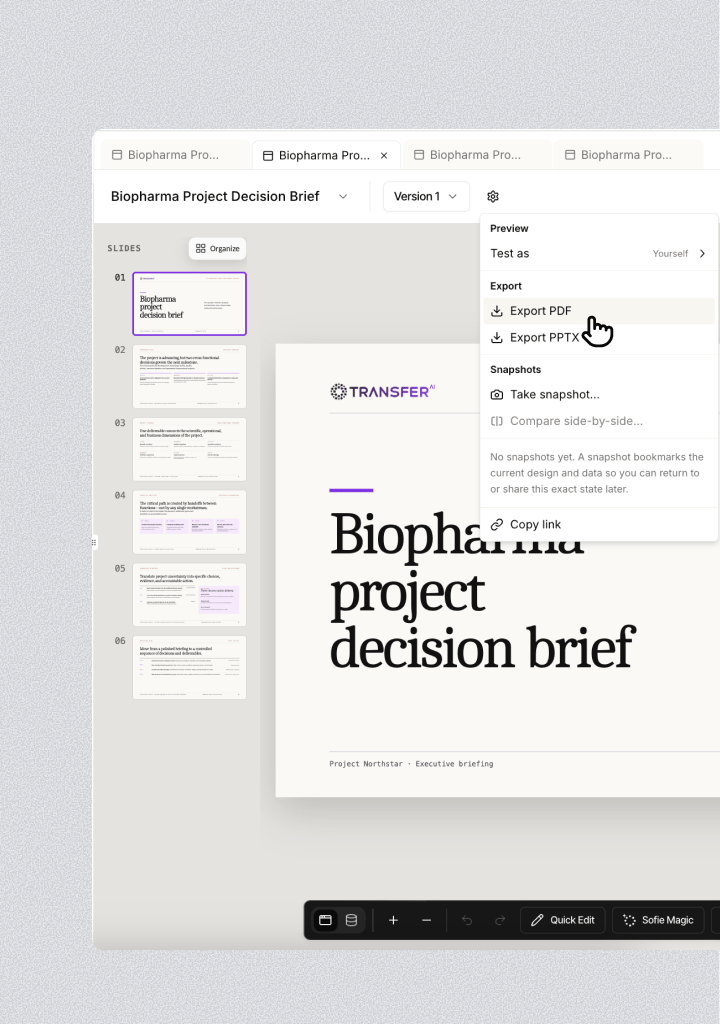 The delivered file itself does not change. The named snapshot lets you reopen its version and feed state later, but it does not preserve old collection-record values.
For PPTX font choices and an export checklist, see [Create and edit a Surface](/surfaces/create-and-edit#export-a-surface).
The delivered file itself does not change. The named snapshot lets you reopen its version and feed state later, but it does not preserve old collection-record values.
For PPTX font choices and an export checklist, see [Create and edit a Surface](/surfaces/create-and-edit#export-a-surface).