

When to use Orchestrate
Use Orchestrate when the same kind of work repeats with different inputs. Good candidates:- CAPA development.
- CAPA effectiveness checks.
- Deviation investigation report authoring.
- Batch record review.
- Tech transfer charter generation.
- Validation protocol generation.
- URS drafting.
- Quality risk assessment.
- Regulatory or pharmacopoeia research.
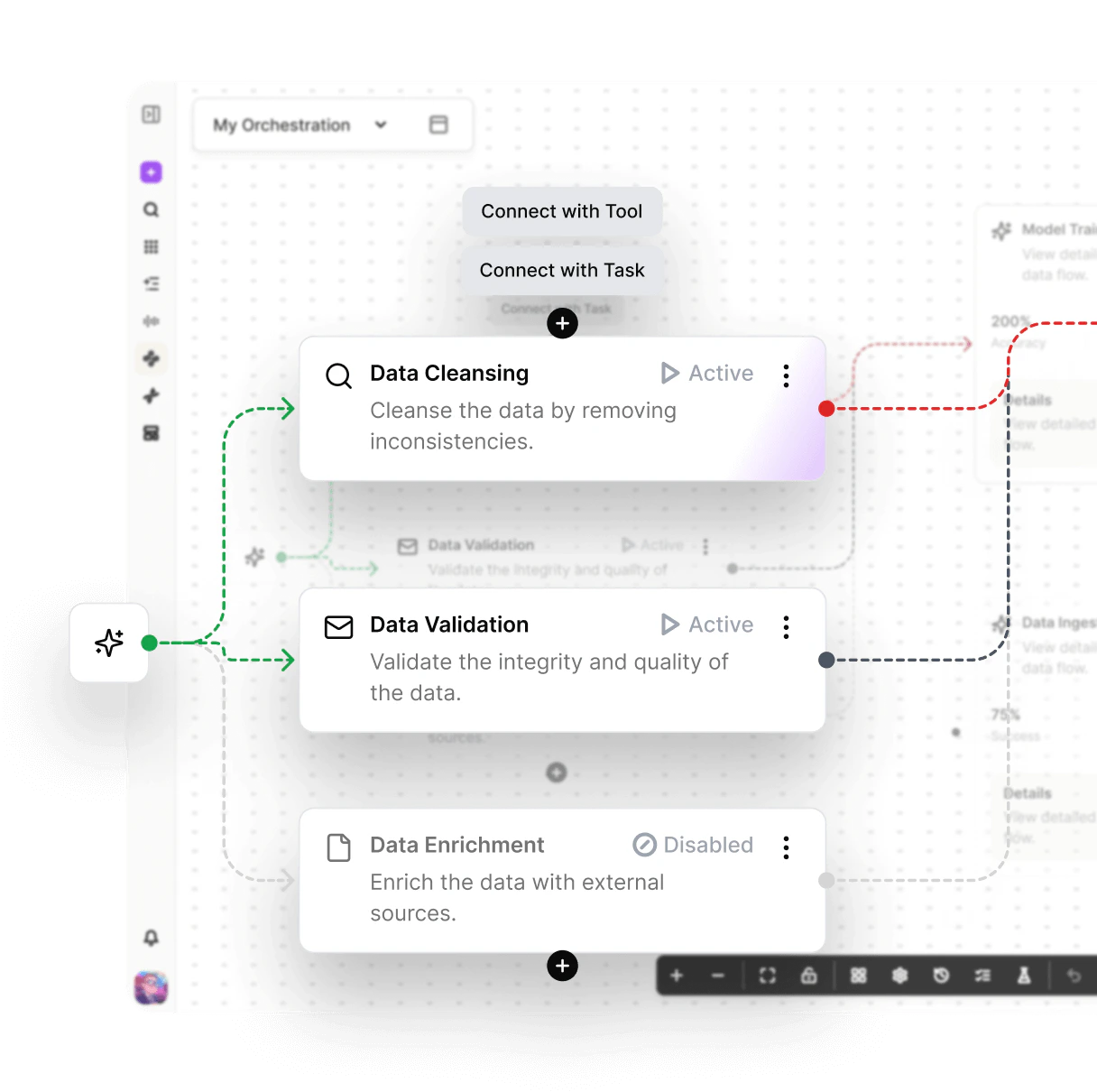
Understand the Orchestrate page
The Orchestrate page includes:Start from the library
The Library includes prebuilt workflows that may be available to your organization. Examples include:- Annual Product Review (APR/PQR)
- CAPA Development
- CAPA Effectiveness Check
- Complaint Investigation
- Deviation Investigation Report Author
- Deviation Investigation Review & Verification
- GMP Batch Record Review Orchestration
- Master Risk Assessment
- Pharmacopoeia Monograph Comparative Analyzer
- Process Validation Protocol Generator
- Regulatory Compliance Explorer
- Tech Transfer Charter Generator
- User Requirements Specification Builder
- Validation Master Plan Generator
1
Open Orchestrate
Click Orchestrate in the sidebar.
2
Open Library
Select the Library tab.
3
Search or browse
Search by workflow type, such as
CAPA, deviation, URS, validation, or risk.4
Preview the workflow
Use the view option to inspect the workflow structure before running it.
5
Run the workflow
Run the Orchestration from the Library or create your own copy when you need to customize it.
Build an Orchestration
An Orchestration is made from practical building blocks.
Build iteratively:
1
Name the workflow
Use a name that describes the repeatable job, such as
CAPA effectiveness check.2
Define inputs
List what a user must provide before the workflow can run.
3
Create the first agent and task
Start with the smallest useful workflow.
4
Add tools and review points
Add only the tools and human input steps needed for the workflow.
5
Run a test
Run it with a realistic Workspace or file set. Check whether the output is useful.
6
Refine and publish
Improve instructions, inputs, and outputs before publishing for reuse.
Draft, publish, and share
Keep an Orchestration as a draft while you are building and testing it. Publish when:- The inputs are clear.
- The expected output is clear.
- Review points are in the right places.
- The workflow has been tested on realistic examples.
- Other users can run it without needing hidden context.
Run an Orchestration
You can run an Orchestration from Orchestrate or ask Sofie from chat. When you click Run, Sofie may start a chat and ask for required inputs before the workflow begins. Inputs may include:- A Workspace.
- One or more files.
- A CoDraft.
- A CoMeeting.
- A CoSheet.
- A date, text value, or selected option.
Review artifacts from a run
When an Orchestration creates, opens, reviews, modifies, imports, or exports artifacts during a run, Sofie can show those items in an Artifacts section on the run result. Use this section to see what changed without hunting through the Workspace or chat history. The Artifacts section may include items such as:- CoDrafts created from templates or run output.
- CoSheets created or updated during the workflow.
- CoMeetings referenced by the workflow.
- Orchestrations opened or modified by the run.
- Other enabled artifact types in your organization.
1
Open the run result
Open the completed Orchestration run from chat, the Orchestration run panel, or run history.
2
Find Artifacts
Scroll to Artifacts below the run output.
3
Open in the side panel
Use Open in side panel when available to inspect the artifact without leaving the run result.
4
Open in a new tab
Use Open in new tab when you want the full artifact page or when side-panel opening is not available for that artifact type.
5
Review what changed
Check the artifact content, source support, destination, and whether the run updated the right item.
Use human input and approvals
Human review steps are useful when:- The next action requires SME judgment.
- Sofie should not infer a missing fact.
- The workflow needs a decision before continuing.
- The next step would save, share, or change important content.
- A reviewer must confirm source interpretation.
Open results from chat
When an Orchestration runs from chat, Sofie can show progress, results, and the Artifacts section in the conversation. Open run artifacts from the result when available. Good follow-up prompts:Design better Orchestrations
For a deeper framework on inputs, source rules, task design, tests, publishing, and maintenance, see Use Orchestrations intelligently. For manual tests, saved-run baselines, validation methods, drift, run history, Memory checks, and parallel execution checks, see Test Orchestrations.Start with inputs
Start with inputs
If users do not know what to provide, the workflow will fail in practice. Define required files, Workspace, date ranges, artifact types, and review roles first.
Keep outputs reviewable
Keep outputs reviewable
Ask for tables, structured sections, source references, assumptions, and open questions. Avoid asking for a final conclusion without requiring source checks.
Use review points before action
Use review points before action
Add human input before saving to a shared Workspace, creating a final document, or continuing after an ambiguous source interpretation.