

When to create a Workspace
Create a Workspace for work that has durable context:- Tech transfer packages.
- Validation or qualification work.
- Deviation investigations.
- CAPA development and effectiveness checks.
- Regulatory or pharmacopoeia research.
- Batch record review.
- Quality risk assessment.
- Cross-functional meeting series.
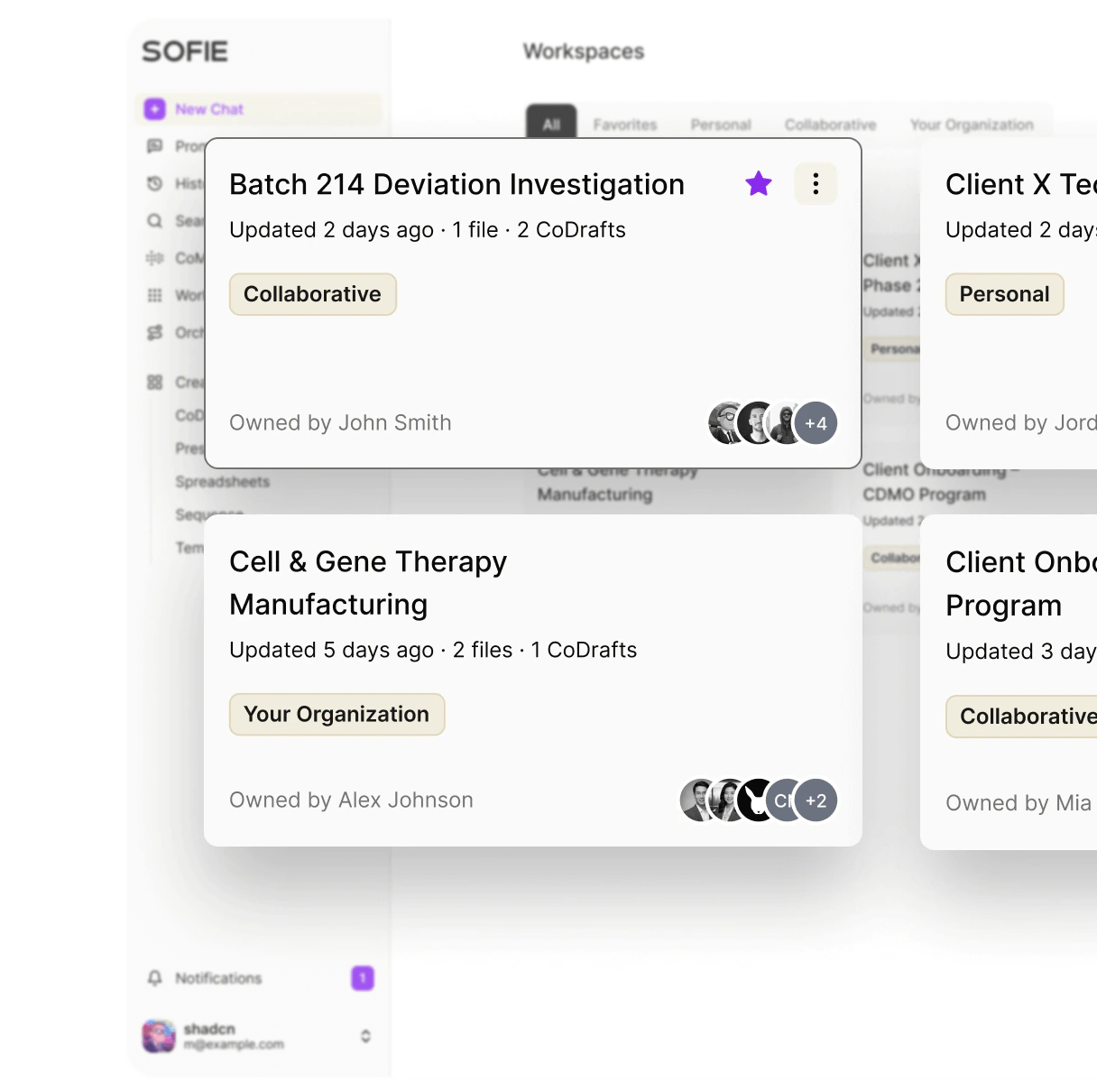
Workspace types
Create a Workspace
1
Open Workspaces
Click Workspaces in the sidebar.
2
Start creation
Click New Workspace from the home shortcuts or open the create option on the Workspaces page.
3
Name the Workspace
Use a name that identifies the product, process, campaign, or workstream.
4
Add a description
Describe what belongs in the Workspace and what is out of scope.
5
Invite teammates
Add teammates and choose a role such as Admin, Editor, or Viewer.
Fill-finish deviation DI-2026-014Stage 2 PPQ protocol packageTech transfer - product A to CDMO BAPR 2026 source files
Use the Workspace tabs
Workspace detail pages organize work into tabs.Add and organize files
Use Create in the Workspace to add:- New Folder
- New Surface
- New CoDraft
- New CoSheet
- New Template
- New CoMeeting
- Upload Files
Workspace files must use a supported format and can be up to 50 MB each.
Search inside a Workspace
Use Workspace search when you need to find files, folders, chats, meetings, or documents in the Workspace. Workspace search is how Sofie uses Workspace knowledge. When useful files, documents, and meetings are included in Workspace search, Sofie can retrieve relevant context from that shared source set instead of relying only on the current chat. Search examples:- Product name or project code.
- Equipment name.
- Batch, lot, campaign, or protocol identifier.
release assayacceptance criteriaopen questions
Use a Workspace in chat
Start a chat from the Workspace or add the Workspace as context. Example:- Which Workspace to use.
- Which source types matter.
- Whether to search all files or focus on specific files.
- Whether the output should be a checklist, table, CoDraft, or CoSheet.
Manage artifacts
Artifacts connected to a Workspace stay with the project context. Use:- Surface for interactive trackers, forms, dashboards, page-based deliverables, and slide decks.
- CoDraft for reports, protocols, URS, meeting briefs, investigation narratives, and SOP drafts.
- CoSheet for issue logs, batch review tables, risk scoring, sampling plans, and trend analysis.
- CoMeeting for SME interviews, working sessions, and decision capture.
- Templates for recurring document structures.
- Recent chats for the reasoning trail that led to artifacts.
Move, rename, and clean up content
Workspaces support file and folder management. Depending on your permissions, you can rename, move, delete, download, or bulk-manage items. Before moving or deleting:- Confirm the item is not the active source for a CoDraft, CoSheet, CoMeeting, or chat.
- Check whether teammates are using the content.
- Preserve source files needed for later review.
Manage access
Workspace access affects files, artifacts, and related context. General role guidance:Connect cloud files
If your organization enables integrations, you may be able to import from cloud sources such as Google Drive, OneDrive, or SharePoint. Use cloud import when:- The source file already lives in a team document library.
- You need Workspace context without manually downloading files.
- Teammates already maintain the source outside Sofie.
Integration availability depends on organization settings and your connected account permissions.