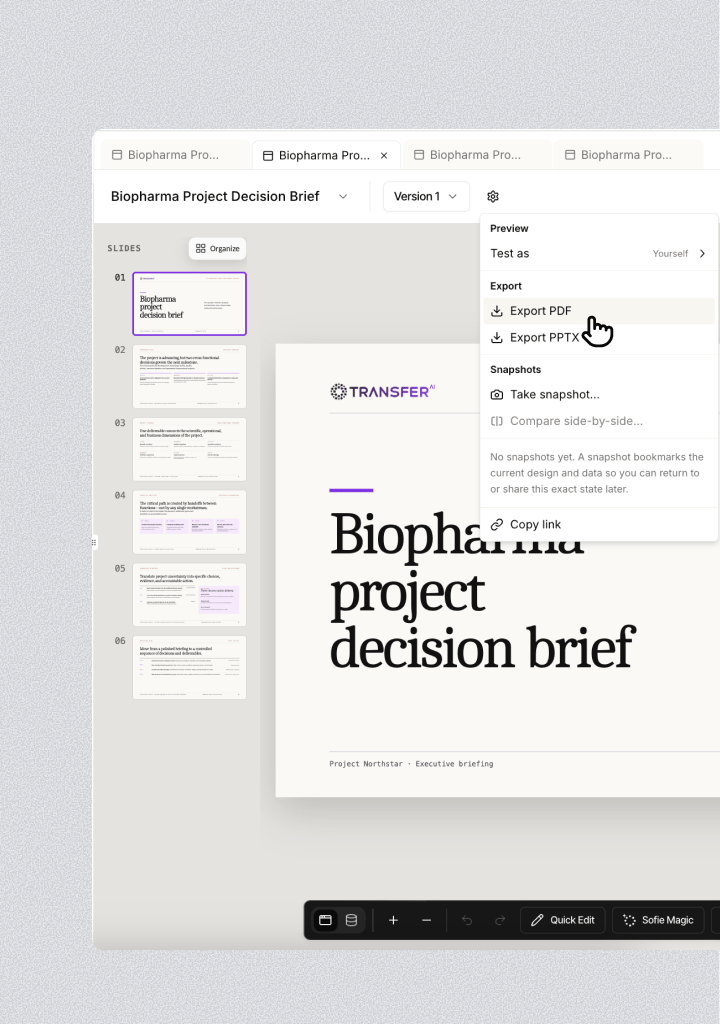
Understand version states
A new Surface starts as version 1 in draft. Making it live does not invite anyone. Sharing and guest invitations remain separate actions.
Create a version
Open the version menu and click Create version. The new draft starts from the version you selected. Create a draft before a meaningful change when you want to:- Preserve the current live experience.
- Test new fields, access, forms, or interactions.
- Let an external reviewer try the change with test data.
- Compare the change with the current live version.
Know which records a draft uses
Test a draft safely
When a live version exists, a draft reads its own copy of test records. The Data view labels this Test data. Use Surface settings > Test as to preview the draft as:- Manager.
- Participant.
- Viewer.
- Guest.
Make a draft live
1
Open the draft
Choose the draft from the version menu.
2
Start the review
Click Make live or Promote to live.
3
Review the readiness summary
Check changes to the experience, data contract, access, records, and guest behavior. Review any live-data changes that happened after the draft’s test copy.
4
Resolve blocking issues
If Sofie finds a problem, click Ask Sofie to fix this, then run the readiness check again.
5
Confirm
Click Make live. Everyone with access now uses that version. The previous live version stays in history.
Restore an earlier version
Open the version menu and click Restore as draft on a previous version. Sofie creates a new draft from that version instead of rewriting history. Review the restored draft against current data and access. Then use the normal Make live flow if you want it to replace the current experience.Discard a draft
Use the delete control beside a draft version and confirm Discard draft. Discarding a draft:- Keeps the current live records and their history.
- Removes test data entered while building that draft.
- Does not change the current live version.
Take a snapshot
A snapshot saves the selected Surface version and the latest event not marked invalid for each configured feed at that moment.1
Open Surface settings
Click the settings icon in the Surface header.
2
Take a snapshot
Under Snapshots, click Take snapshot….
3
Name the state
Enter a clear name, such as
Q1 2026 client review, and optionally add a description.4
Save
Click Save snapshot.
Open, share, or delete a snapshot
Choose a snapshot from Surface settings to open its saved version and feed state. While viewing it, use Return to current to go back to the latest version and data. From the snapshot list, you can:- Share a snapshot with selected teammates.
- Copy a link to the current live, historical, or snapshot view.
- Delete a snapshot you no longer need.
- Open the full snapshot library when more than five exist.
Compare snapshots
After you create at least two snapshots, choose Compare side-by-side…. The comparison view shows both rendered views and a What changed section for feeds. Depending on the feed type, the diff can show:- Added, removed, or changed rows.
- Field-level before and after values.
- A count of changed feeds.
Export the state you are viewing
Exports use the version and feed state you are viewing. If you open a snapshot first, the export uses that snapshot’s version and feeds. Any collection records are read when the export is produced. Slides exports also offer Save as a named snapshot first. Use it when you want to retain the version and feed selections behind a delivered deck.