

Understand the roles
Managers can work on a Surface before it has a live version. Participants and Viewers use the current live version, so you must make the first version live before sharing with those roles.
Share with teammates
Only the owner can add or change teammate access.1
Open sharing
Open the Surface and click Share.
2
Choose Teammates
Select the Teammates tab.
3
Add people
Search by name or email and select one or more teammates.
4
Choose access
Select Can view, Can participate, or Can manage Surface.
5
Add context
Optionally add a note for the recipients, then click Share.
A Surface in a Workspace also gives every Workspace member inherited Viewer access to the current live version. A direct Participant or Manager role takes precedence. Removing a direct share does not remove inherited Workspace access.
Set the Surface-wide guest policy
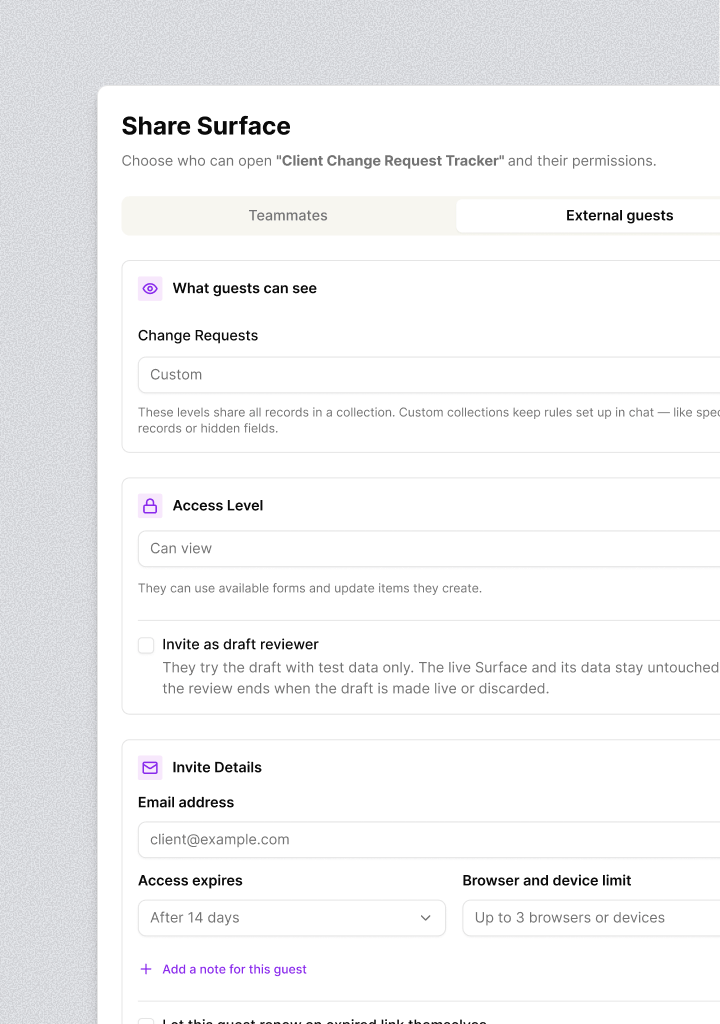
Before you invite a guest to the live Surface, decide what all live guests can do in each collection. Open Share > External guests and use What guests can see. Draft-review invitations are explained separately below.
Click Save and update live surface after changing a level. The current live Surface changes immediately for existing and future live guest invitations. Sofie also carries the change into open drafts so a later Make live does not silently restore the old guest policy.
Make everything viewable changes each currently Hidden collection to Can view. It makes all records in those collections readable to live guests. Existing custom collections remain custom.
If you need selected-record access or field-specific limits, ask Sofie before creating the invitation:
Invite an external guest
Managers can invite people outside Sofie from the External guests tab after the Surface-wide guest policy is ready.1
Confirm the live version and guest policy
Live guests use the current live version. Review What guests can see and save any Surface-wide changes before configuring this invitation.
2
Choose specific records when required
If the Surface uses invited-record access, select the records this guest should see. Linked items that the Surface allows can appear with them.
3
Choose the access level
Select Can view or Can participate. Guests cannot manage the Surface or change who has access.
4
Set invitation limits
Enter the email address. Choose an expiry from 1 to 365 days and a limit of 1, 3, 5, or 10 browsers or devices.
5
Choose renewal and downloads
Decide whether the guest can renew an expired link themselves and whether they can download the Surface. Optionally add a note.
6
Preview and send
Click Preview as this guest to check the live experience, then click Send Invitation.
Control guest data
Guest access is the intersection of several layers. A later layer can narrow an earlier one, but an invitation cannot broaden the Surface-wide policy.Invite a draft reviewer
Use Invite as draft reviewer when an external person should test an unpublished draft. A draft reviewer:- Uses isolated test data.
- Cannot affect the live Surface or live records.
- Reviews only that draft.
- Loses review access when the draft is made live or discarded.
Control downloads
When Allow downloads is on:- A Slides guest can download PDF or editable PPTX.
- A Pages guest can download PDF.
- An Interactive guest can download a paginated PDF.
Manage existing invitations
The External guests list shows whether an invitation is pending, active, expired, or ended. It can also show the last open time, records added, reviewer status, and download access. You can:- Extend access by 7, 14, 30, 60, or 90 days.
- Turn self-renewal on or off.
- Change download access.
- Send a new invitation.
- End access.
Open a Surface as a guest
If you receive a Surface invitation:1
Open the newest invitation email
The invitation page shows the Surface title, the email it was shared with, your access summary, available downloads, expiry, and remaining browser or device limit.
2
Click Open Surface
The link opens only the shared Surface. It does not open the surrounding Workspace, chats, or other Sofie artifacts.
3
Use the intended browser or device
Each different browser or device counts once toward the invitation limit. Ask the sender for a new invitation if you need a different limit.
4
Renew when offered
If the link expired or reached its limit and self-renewal is enabled, click Email me a new link. Sofie sends it to the original invitation email. Open the newest email because the old link no longer works.