

Write a useful build request
Include four things in your first request:
Example:
Build from the Surface page
1
Create the Surface
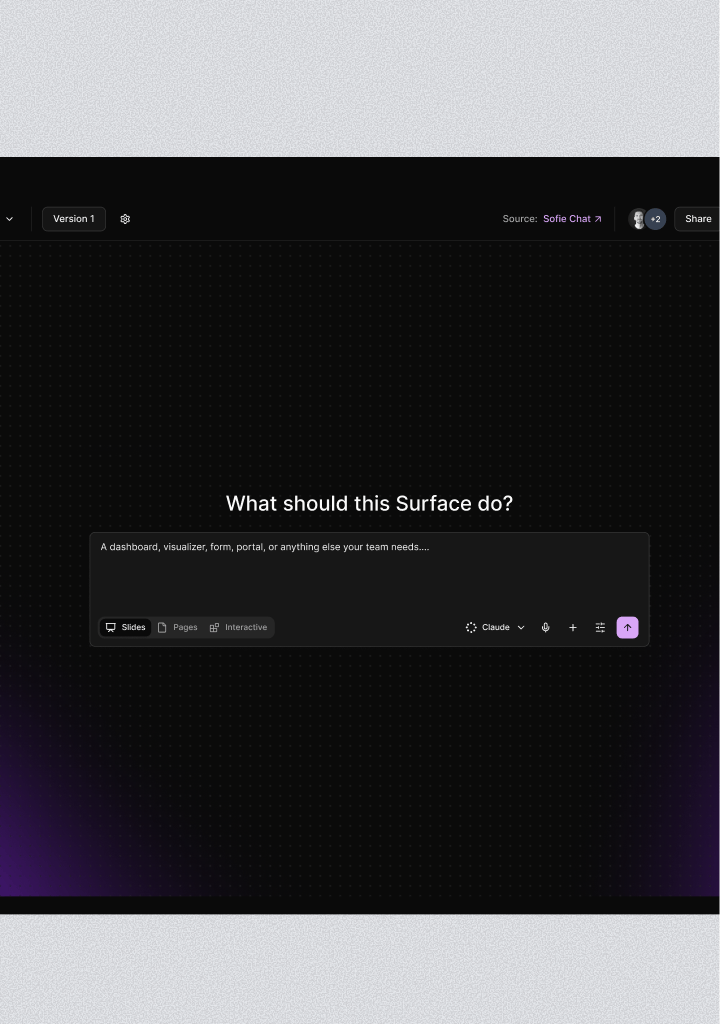
Open Surfaces, click Create Surface, and select Interactive, Pages, or Slides.
2
Describe what it should do
Enter your build request in What should this Surface do?. Add a Workspace or attachments when Sofie needs source context.
3
Review the first result
Check the information, layout, interactions, and source use. Test any forms, filters, links, or calculations.
4
Refine with Sofie
Ask for focused changes in Sofie Everywhere or the originating chat. Keep each request specific enough to verify.
Refine from chat
When a Surface is open beside chat, Sofie understands that Surface as the current page context. Ask for changes in plain language. Useful follow-ups:Use Quick Edit
Quick Edit lets a manager change visible content directly on the Surface.1
Open the toolbar
If the bottom toolbar is hidden, click Show Toolbar.
2
Start Quick Edit
Click Quick Edit.
3
Edit the content
Click an editable element. Change its text, size, or position when those controls are available.
4
Finish editing
Click Finish Editing. Sofie saves the changes and moves them to an editable draft when needed.
Mark a change with Sofie Magic
Sofie Magic lets you point to a specific area instead of describing its location.1
Start Sofie Magic
Click Sofie Magic in the Surface toolbar.
2
Mark the area
Draw around the region you want to change. Sofie captures the marked view and any selected text.
3
Describe the change
Enter a focused instruction in Tell Sofie what to change….
4
Send and review
Click Send to Sofie. Review the updated Surface when Sofie finishes.
Work with Pages
Pages use a fixed document layout. Managers can open Surface settings and use Page setup to choose:- Letter, A4, or legal size.
- Portrait or landscape orientation.
Work with Slides
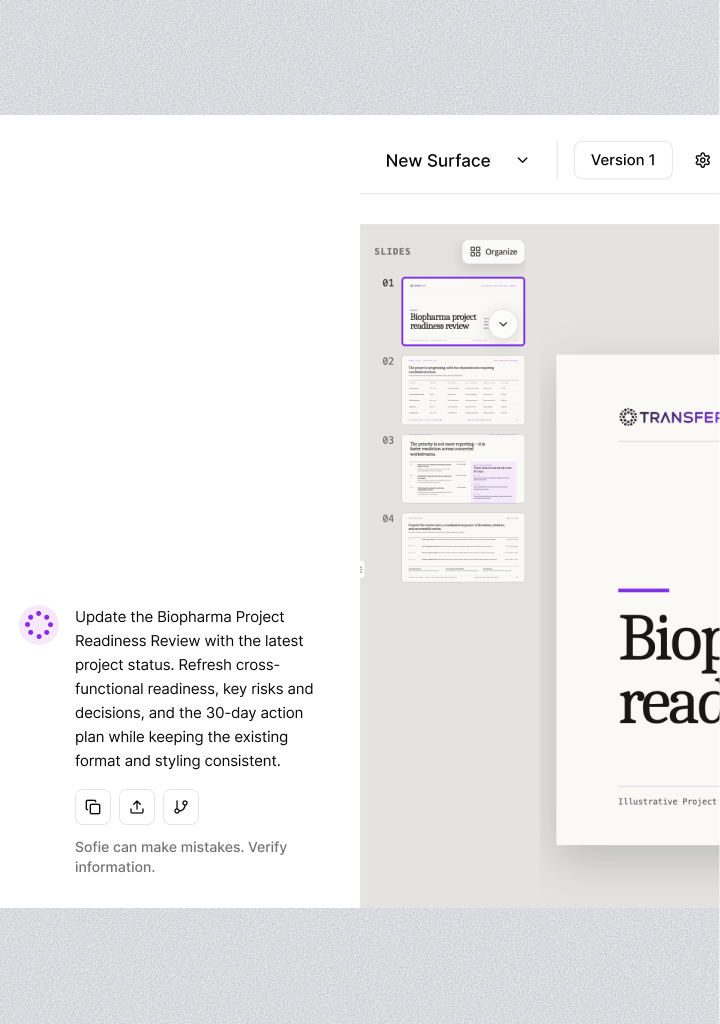
Slides include a slide rail for navigation. Use Organize to drag slides into a new order or use the arrow controls on each slide card. The organizer saves the order as you change it. When presenting, you can move through slides with the on-screen controls or common presentation keys such as the arrow keys, Page Up, Page Down, and the space bar.Present a Surface
Open Present and choose:- In this tab to use the current browser tab.
- Fullscreen to enter a distraction-free view.
- New tab to open a separate presentation window.
Export a Surface
Open Surface settings and choose the format available for the Surface:
For an editable Slides export, choose the font strategy that matches where the deck will be used:
Before delivery:
- Open the live version, draft, previous version, or snapshot you intend to export.
- Confirm the visible record and feed values are current for the delivery.
- Check page or slide order, wrapping, clipping, charts, images, and source labels.
- Choose the PPTX font option for the recipient’s editor.
- Open the exported file in its destination application and compare it with the Surface.
A snapshot preserves a Surface version and feed selections, but it does not freeze collection records. See Versions and snapshots before using a snapshot for a point-in-time deliverable.